Table of Contents
PC Migration Pro allows you to easily migrate users between two computers while the user continues to work.
This Getting Started guide will show you how to migrate a user in 3 easy steps.
Preparing the new device for migration #
Please see Preparing to Migrate on our PC Migration Complete Checklist:
https://help.pcmigrationpro.com/docs/pc-migration-checklist/#prepare
- Important: Install applications, specifically Microsoft Office (including Microsoft Outlook) and Internet Browser on the new computer before my migrating so that the settings can be applied.
- Ensure that the new computer have sufficient disk space available to migrate all of the data (see https://help.pcmigrationpro.com/docs/what-happens-if-the-new-computer-has-less-disk-space-than-the-older-computer/)
- Ensure that the new computer has the same hard drive volumes configured (see https://help.pcmigrationpro.com/docs/what-happens-when-my-hard-drive-configuration-is-different-on-my-new-computer/)
Step 1: Enter your license and get your link code #
- Start by installing PC Migration Pro on the new computer.
- Start PC Migration Pro and select “New Computer”
- Enter your license key provided in your welcome email.
- You will be provided with a unique Link Code.

Step 2: Link your two computer #
- Install PC Migration Pro on the old computer
- Select “Old Computer”
- Enter the link code that you received on the new computer and click Next.
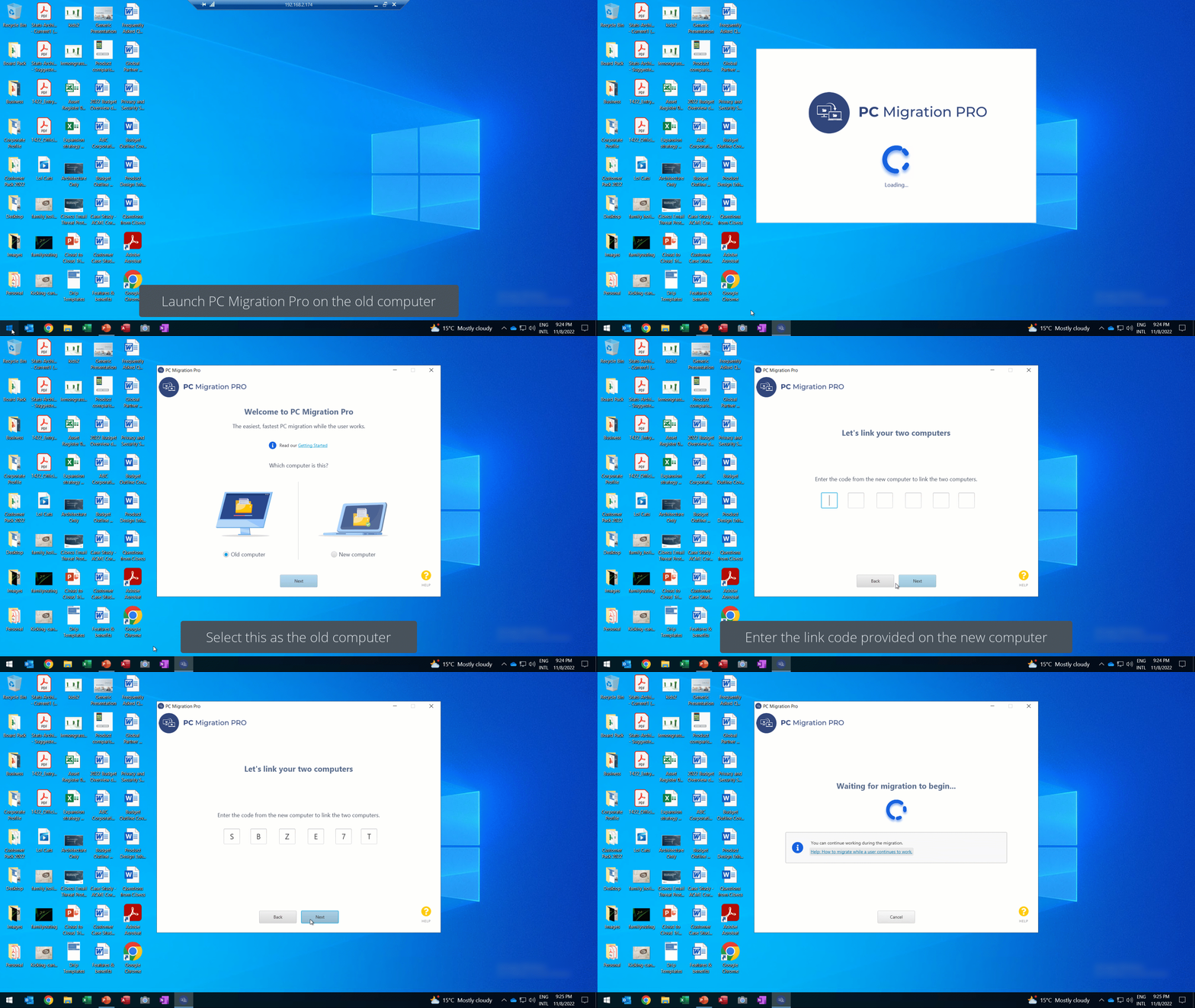
The user can now continue working
Step 3: Start the migration on the new computer #
- Your two computers will now be linked (see Troubleshooting connection issues). Click Next.
- It will show you which computer you are migrating from and to. Click Start Migration.
- It will start to transfer the files and profile settings. Let it continue until complete.

Final Setup #
Please see Final Setup on our PC Migration Complete Checklist:
https://help.pcmigrationpro.com/docs/pc-migration-checklist/#finalsetup
- Confirm that all files have migrated
- Sign out and Sign in on the new computer so that the profile settings can be applied.
- Launch and sign into application (Microsoft Outlook, Team and Internet Browsers and OneDrive)


